Adding Office Hours in SiteManager

This article describes how to add the office hour module to your Hamilton College page. The Office Hour Module shows daily office hours for a specific time period. Typically, this module is placed in the sidebar.

 Instructions

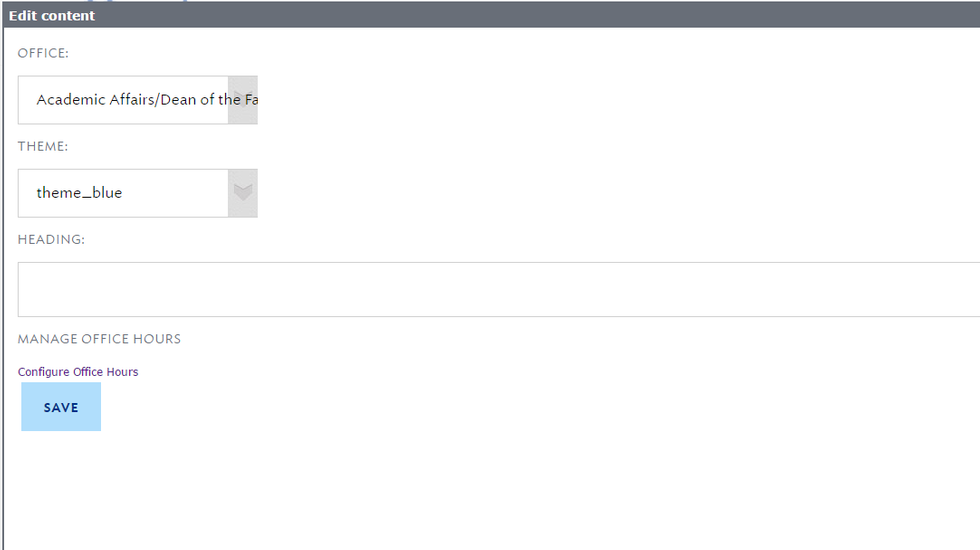
  1. Click on Add Content to Lower Sidebar button at the bottom of the page and select the Office Hours module.

  2. Mouse over the module and click on Edit.

  3. Select which office’s hours you want to display.

  4. Select a color theme.

  5. Put a heading (if applicable).

  6. If you need to edit the office hours, click Configure Office Hours and find your office. 

  7. Click Save.

Office Hours edit box

 More information

Print Article

Related Articles (8)

This article explains how to add a video to your Hamilton College site.
This article explains how to embed Google Calendar events on your Hamilton College webpage.
This article explains how to add site contact information on a Hamilton College page.
This article provides information on how to add videos to content using Sitemanager.
This article explains how to enter Edit Mode within SiteManager.
This article explains how to edit text in SiteManager.
This article explains how to navigate in the SiteManager interface.
This article explains SiteManager 4.5, used for updating website content at Hamilton.